
Whether you’re new to cryptocurrency or already familiar with blockchain, the first step to using Zano is choosing the right wallet.
This guide explains the different wallet options available, how to safely download the official wallet, and how to install it on Windows, macOS, or Linux.
By the end of this guide, you’ll know exactly which wallet is right for you and how to get started.
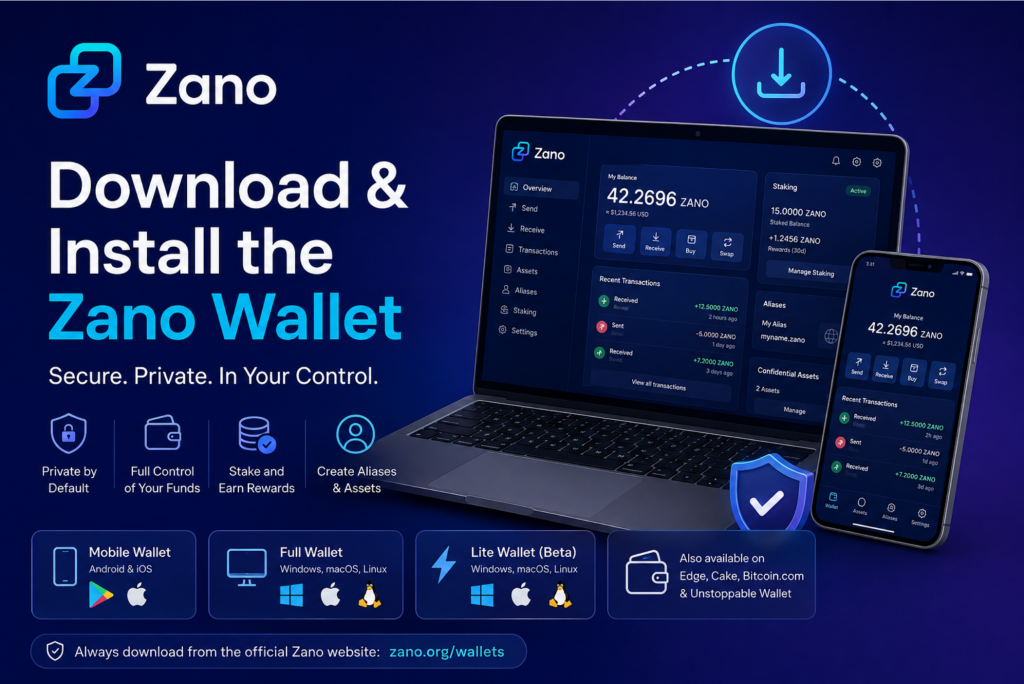
Table of Contents
- What Is a Zano Wallet?
- Why You Need a Wallet
- Choose the Right Zano Wallet
- Where to Download the Official Wallet
- Installing the Wallet
- Setting Up Your Wallet for the First Time
- Keeping Your Wallet Safe
- Frequently Asked Questions
- What’s Next?
- Sources
1. What Is a Zano Wallet?
A Zano wallet is software that allows you to access and manage your ZANO cryptocurrency.
Think of it like a digital wallet. Instead of holding cash or bank cards, it securely stores the information needed to access your cryptocurrency on the Zano blockchain.
With a Zano wallet, you can:
- Store your ZANO securely
- Send and receive ZANO
- View your transaction history
- Receive and manage Confidential Assets
- Register Zano aliases
- Stake ZANO (using the Full Wallet)
Unlike a traditional bank account, you remain in full control of your wallet and your funds.
2. Why You Need a Wallet
Before you can receive, buy, or send ZANO, you’ll need a wallet.
The official Zano wallets are designed to make using the network simple while giving you complete control over your cryptocurrency.
Using an official wallet also gives you access to the latest features developed for the Zano ecosystem.
3. Choose the Right Zano Wallet
Zano offers several wallet options depending on how you plan to use the network.
If you’re unsure which one to choose, the explanations below will help.
3.1 Official Mobile Wallet
The Official Zano Mobile Wallet is available for Android and iPhone.
It is ideal if you want to:
- Access your wallet anywhere
- Send and receive ZANO quickly
- Manage your funds from your smartphone
- Use Zano while travelling
Available for:
- Android (Google Play)
- Android (APK)
- iPhone (App Store)
For most beginners, this is the easiest wallet to start with.
3.2 Full Wallet (Desktop)
The Full Wallet is the complete desktop version of the official Zano wallet.
It is available for:
- Windows
- macOS
- Linux
The Full Wallet downloads a complete copy of the Zano blockchain to your computer.
It is recommended if you want to:
- Stake your ZANO
- Run a full node
- Access every feature available on the Zano network
- Help support the blockchain network
Because it stores the blockchain locally, you’ll need additional storage space, and the first synchronization may take some time.
3.3 Lite Wallet (Beta)
The Lite Wallet is a lightweight desktop wallet.
Instead of downloading the full blockchain, it connects to a trusted remote node.
Available for:
- Windows
- macOS
- Linux
Choose the Lite Wallet if you:
- Want to get started quickly
- Have limited storage space
- Don’t plan to run a full node
At the time of writing, the Lite Wallet is available as a Beta release.
3.4 Third-Party Wallets
ZANO is also supported by several trusted third-party wallets.
These include:
These wallets allow you to manage ZANO alongside many other cryptocurrencies.
However, if you’re completely new to Zano, it’s recommended to begin with one of the official Zano wallets.
4. Where to Download the Official Wallet
For your security, always download your wallet from the official Zano Wallet page.
Once you’re on the Wallets page:
- Choose the wallet that best suits your needs.
- Select your operating system.
- Download the latest version.
- Wait for the download to finish.
- Open the installer.
Avoid downloading wallet software from unofficial websites or links shared by unknown sources.
5. Installing the Wallet
Installing the wallet is simple.
Windows
- Download the Windows installer.
- Open the downloaded file.
- Follow the installation wizard.
- Click Install.
- Launch the wallet when the installation is complete.
macOS
- Download the macOS version.
- Open the downloaded DMG file.
- Drag the wallet into your Applications folder.
- Open the wallet.
Linux
- Download the Linux version.
- Follow the installation instructions for your Linux distribution.
- Launch the wallet.
If you’re using the Full Wallet, it will begin synchronizing with the blockchain after installation. Depending on your internet connection, this may take some time.
6. Setting Up Your Wallet for the First Time
When you launch the wallet for the first time, you’ll be given two options:
- Create a new wallet
- Restore an existing wallet
If you’re new to Zano:
- Select Create a New Wallet.
- Create a strong password.
- Write down your recovery seed or backup information.
- Store it in a safe location.
Your recovery information is the only way to restore access to your wallet if your computer or phone is lost, stolen, or damaged.
Never share your recovery seed or private keys with anyone.
7. Keeping Your Wallet Safe
Good security habits will help protect your cryptocurrency.
Always remember to:
- Download wallets only from the official Zano website.
- Keep your wallet software updated.
- Use a strong password.
- Back up your wallet.
- Store your recovery seed somewhere secure.
- Be cautious of phishing websites and fake wallet downloads.
Anyone who has access to your recovery phrase can access your cryptocurrency.
8. Frequently Asked Questions
Which wallet is best for beginners?
For most people, the official Mobile Wallet is the easiest way to get started.
Can I use both the Mobile Wallet and the Full Wallet?
Yes.
Many users keep smaller amounts in their Mobile Wallet for everyday transactions while using the Full Wallet for staking or long-term storage.
What’s the difference between the Lite Wallet and the Full Wallet?
The Lite Wallet connects to a remote node and doesn’t download the full blockchain.
The Full Wallet downloads the entire blockchain, giving you access to every feature while also helping support the network.
Are all official Zano wallets free?
Yes.
All official Zano wallets are free to download and use.
9. What’s Next?
Congratulations! You’ve successfully downloaded and installed your first Zano wallet.
Your next step is learning how to create your first wallet address, secure it properly, and prepare it to send and receive ZANO.
You may also find these guides helpful:
- How to Create Your First Zano Wallet
- How to Back Up Your Zano Wallet
- How to Send and Receive ZANO
- Understanding Confidential Assets
- How Zano Staking Works
10. Sources
- Official Zano GitHub Repository
- Official Zano Wallets
- Official Zano Documentation
- Official Zano GUI Wallet Guide
- Official Zano Getting Started Documentation
Disclaimer: ZanoNews.com is an independent news and information website. This article is for informational purposes only and should not be considered financial, investment, or legal advice.
One thought on “How to Download and Install the Official Zano Wallet”
Comments are closed.