How to Receive ZANO

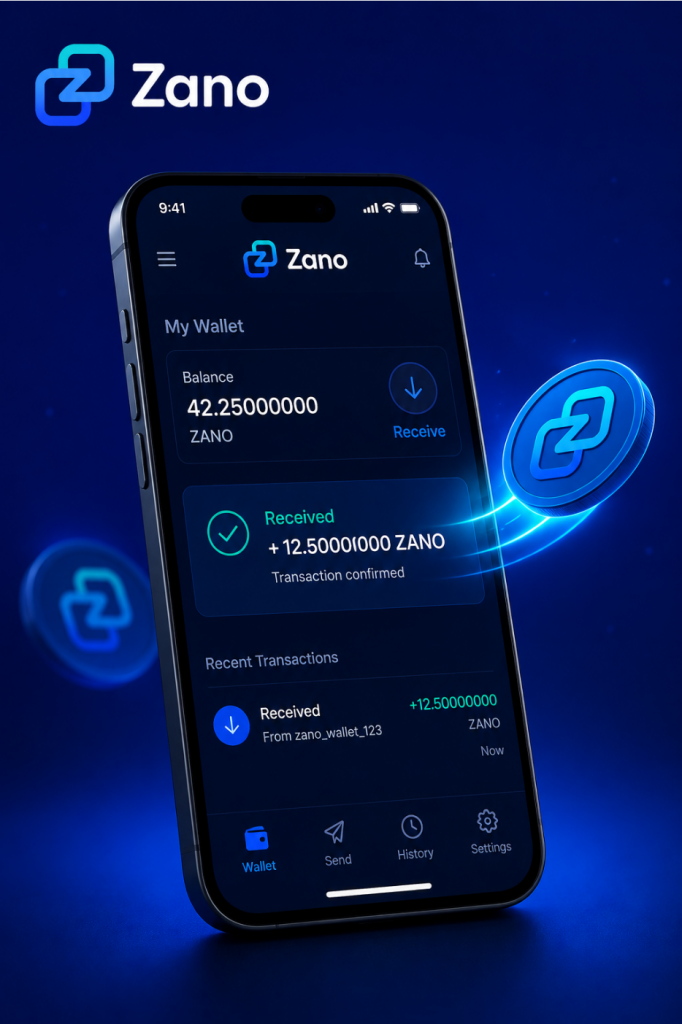
Now that you’ve created your Zano wallet, you’re ready to receive your first ZANO.

Whether you’re receiving ZANO from a friend, another wallet, or a cryptocurrency exchange, the process is simple and only takes a few steps.

This guide explains everything you need to know in easy-to-understand language.

If you haven’t created your wallet yet, read our guide πŸ‘‡

How to Create Your First Zano Wallet

Table of Contents

  1. What Is a Wallet Address?
  2. Find Your Wallet Address
  3. Share Your Wallet Address
  4. Receive ZANO from Another Person
  5. Receive ZANO from a Cryptocurrency Exchange
  6. Check Your Wallet
  7. Common Mistakes to Avoid
  8. Frequently Asked Questions
  9. What’s Next?
  10. Sources

1. What Is a Wallet Address?

A wallet address is a unique address that allows you to receive ZANO.

Think of it like an email address.

Just as someone needs your email address to send you an email, they need your wallet address to send you ZANO.

Your wallet address is safe to share with others.

However, your password, recovery phrase, and private keys should never be shared.

2. Find Your Wallet Address

Open your Zano Wallet.

On the main screen, you’ll usually see a Receive button or section.

Click Receive to view your wallet address.

Most Zano wallets also display a QR code, which makes it easy for someone to send you ZANO by scanning it.

3. Share Your Wallet Address

When someone wants to send you ZANO:

  1. Click the Copy button to copy your wallet address.
  2. Paste the address into a message or email.
  3. Or let the sender scan your QR code.

Before sending your address, quickly check that it has copied correctly.

Using the Copy button is much safer than typing the address manually.

4. Receive ZANO from Another Person

If someone is sending you ZANO:

  1. Share your wallet address or QR code.
  2. Ask the sender to double-check the address before sending.
  3. Wait for the transaction to be processed by the Zano network.

Once the transaction is confirmed, your wallet balance will update automatically.

5. Receive ZANO from a Cryptocurrency Exchange

If you’ve bought ZANO on an exchange and want to move it into your wallet:

  1. Log in to your exchange account.
  2. Go to the Withdraw page.
  3. Select ZANO.
  4. Paste your Zano wallet address into the withdrawal address field.
  5. Enter the amount you want to withdraw.
  6. Review the details carefully.
  7. Confirm the withdrawal.

Before confirming, always make sure you’re sending ZANO to your Zano wallet address.

6. Check Your Wallet

After the transaction has been sent, it needs to be confirmed by the Zano blockchain.

Once confirmed:

  • Your wallet balance will increase.
  • The transaction will appear in your transaction history.
  • Your ZANO will be ready to use.

If you don’t see the transaction immediately, don’t panic. It can take a little time depending on network conditions.

7. Common Mistakes to Avoid

Avoid these common mistakes:

  • Copying only part of your wallet address.
  • Typing the address manually instead of copying it.
  • Sending ZANO to the wrong wallet address.
  • Sharing your password.
  • Sharing your recovery phrase or private keys.

Taking a few extra seconds to check the wallet address can help prevent mistakes.

8. Frequently Asked Questions

Is my wallet address private?

No.

Your wallet address is public and can safely be shared with anyone who wants to send you ZANO.

Can someone access my wallet if they know my wallet address?

No.

Your wallet address only allows people to send you ZANO.

Your password, recovery phrase, and private keys protect your wallet and should always remain private.

How long does it take to receive ZANO?

Most transactions are confirmed within a short time, although this can vary depending on network activity.

Can I receive ZANO more than once?

Yes.

You can use the same wallet address to receive ZANO as many times as you like.

9. What’s Next?

Congratulations!

You’ve successfully learned how to receive ZANO.

The next step is learning how to send ZANO to another wallet safely and securely.

We recommend reading:

How to Send Your ZANO

10. Sources

Disclaimer: ZanoNews.com is an independent news and information website. This article is for informational purposes only and should not be considered financial, investment, or legal advice.
How to Create Your First Zano Wallet

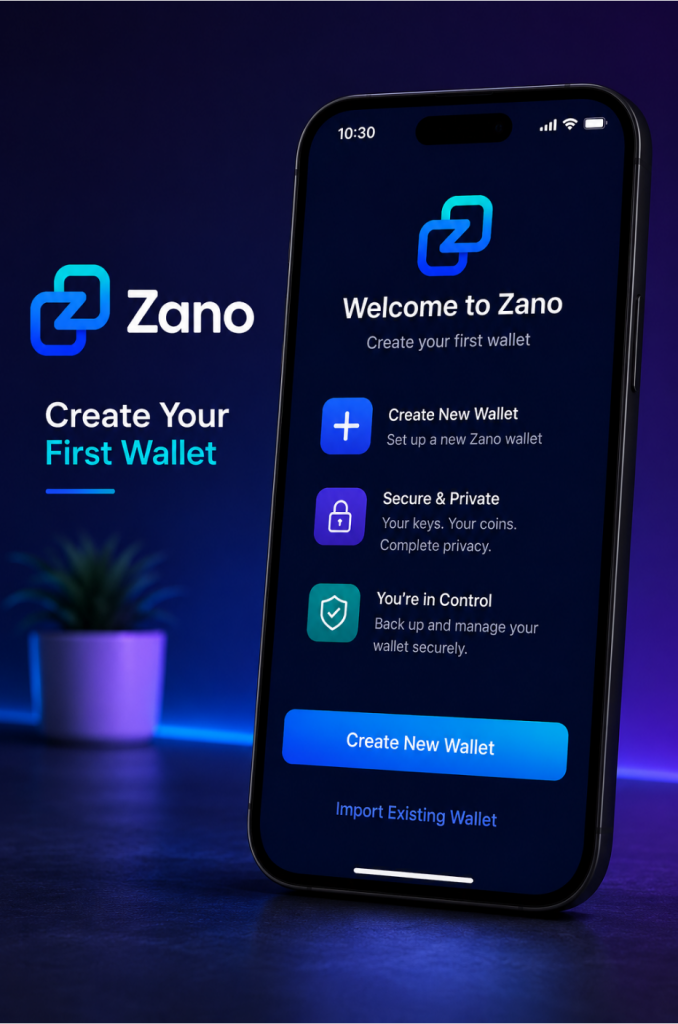
Now that you’ve downloaded and installed the official Zano Wallet, it’s time to create your first wallet.

If you haven’t downloaded and installed the wallet yet, read our guide πŸ‘‰ How to Download and Install the Official Zano Wallet.

If you’re new to cryptocurrency, don’t worry. Creating a Zano wallet is quick, free, and only takes a few minutes.

This guide explains each step in simple language, helping you create your wallet safely and understand the information you’ll see during the setup process.

Table of Contents

  1. What Does It Mean to Create a Wallet?
  2. Before You Begin
  3. Creating Your First Wallet
  4. Choosing a Strong Password
  5. Back Up Your Wallet
  6. Understanding Your Wallet Address
  7. Your Wallet Is Ready
  8. Frequently Asked Questions
  9. What’s Next?
  10. Sources

1. What Does It Mean to Create a Wallet?

Creating a wallet doesn’t create cryptocurrency.

Instead, it creates a secure digital account that allows you to:

  • Store your ZANO
  • Send and receive payments
  • View your transaction history
  • Access features of the Zano ecosystem

Think of your wallet like a digital safe.

Only you should have access to it.

2. Before You Begin

Before creating your wallet, make sure you have:

  • Downloaded the official Zano Wallet.
  • Installed the wallet on your device.
  • A few minutes to complete the setup.
  • A safe place to store your recovery information.

If you haven’t installed the wallet yet, read our guide πŸ‘‡

How to Download and Install the Official Zano Wallet

3. Creating Your First Wallet

Once you’ve opened the Zano Wallet:

  1. Select Create New Wallet.
  2. Enter a name for your wallet (optional, but helpful if you plan to create more than one wallet).
  3. Create a strong password.
  4. Confirm your password.
  5. Continue with the setup.

The wallet will then generate your new wallet.

This process only takes a few seconds.

4. Choosing a Strong Password

Your password helps protect your wallet if someone gains access to your computer or phone.

A good password should:

  • Be at least 12 characters long.
  • Include uppercase and lowercase letters.
  • Include numbers.
  • Include special characters.
  • Be unique and not used for any other account.

Avoid using:

  • Your name
  • Your birthday
  • Simple passwords like 123456 or password

A password manager can help you generate and securely store strong passwords.

5. Back Up Your Wallet

This is the most important step.

During the setup process, the wallet will provide recovery information that allows you to restore access to your wallet if your device is lost, stolen, or damaged.

Make sure you:

  • Write down your recovery seed or backup information.
  • Store it somewhere safe.
  • Keep more than one secure copy if possible.
  • Never share it with anyone.

If someone gains access to your recovery information, they can access your wallet.

6. Understanding Your Wallet Address

After your wallet has been created, you’ll see your wallet address.

This address is similar to an email address.

You can safely share it with others when you want to receive ZANO.

For example:

  • You can share your wallet address with a friend who wants to send you ZANO.
  • You can use it when withdrawing ZANO from an exchange.

Your wallet address is public.

Your password and recovery information are private and should never be shared.

7. Your Wallet Is Ready

Congratulations!

You now have your first Zano wallet.

From here, you can:

  • Receive your first ZANO.
  • Send ZANO to another wallet.
  • View your transaction history.
  • Explore other features of the Zano ecosystem.

Take a few moments to become familiar with the wallet interface before making your first transaction.

8. Frequently Asked Questions

Is creating a Zano wallet free?

Yes.

The official Zano Wallet is free to download, install, and use.

Can I create more than one wallet?

Yes.

Many users create separate wallets for different purposes, such as personal savings, business use, or testing.

Can I change my password later?

Yes.

If needed, you can change your wallet password after the wallet has been created.

What happens if I lose my computer?

If you’ve safely backed up your recovery information, you can restore your wallet on another device.

Without a backup, you may permanently lose access to your wallet.

9. What’s Next?

Now that you’ve created your wallet, you’re ready to receive your first ZANO.

We recommend continuing with these beginner guides:

  • How to Receive Your First ZANO
  • How to Send Your First ZANO
  • How to Back Up Your Zano Wallet
  • Understanding Confidential Assets
  • How Zano Staking Works

Each guide builds on the previous one, helping you become more confident using the Zano ecosystem.

10. Sources

Disclaimer:Β ZanoNews.comΒ is an independent news and information website. This article is for informational purposes only and should not be considered financial, investment, or legal advice.