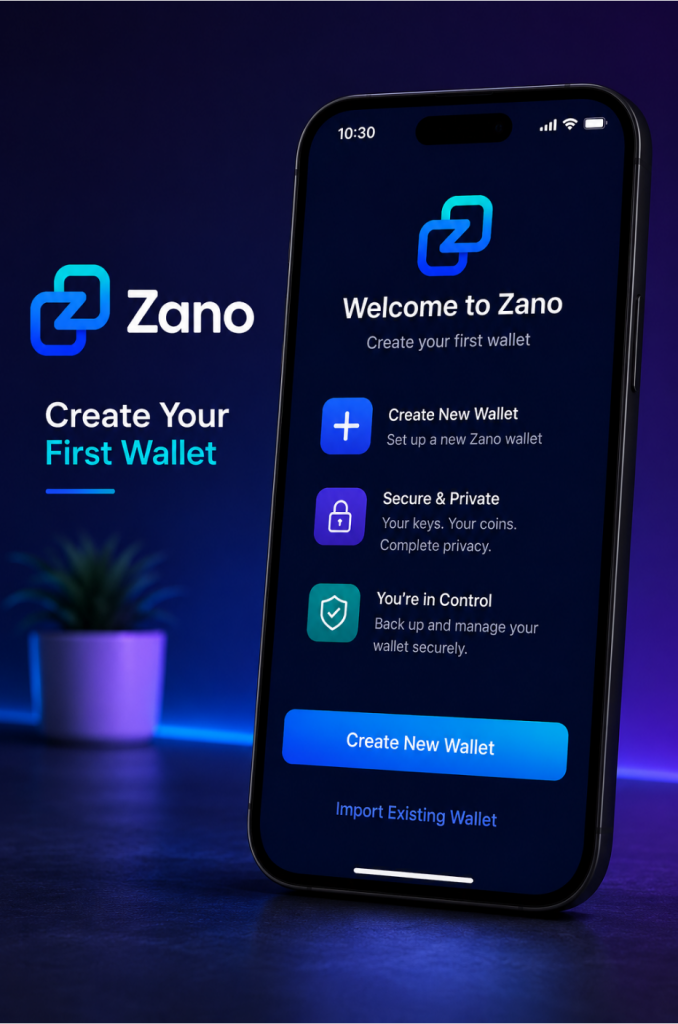
If you’re using a self-custody wallet, you are responsible for keeping your wallet safe.
Backing up your wallet means you’ll still be able to access your ZANO if your phone or computer is lost, stolen, damaged, or replaced.
The good news is that creating a backup only takes a few minutes and can save you from permanently losing your funds.
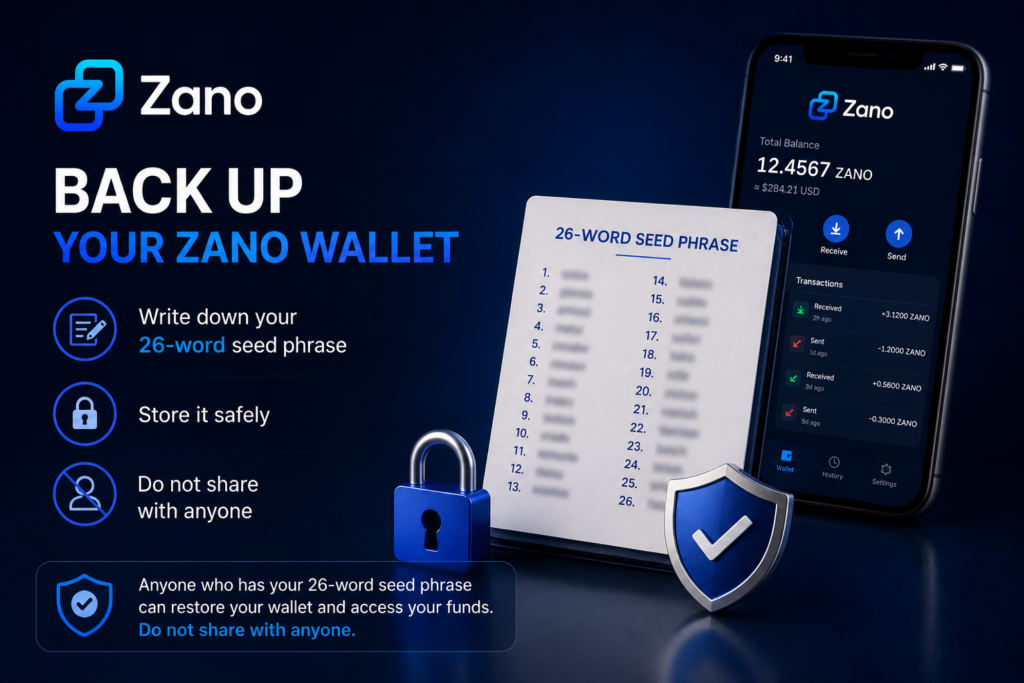
Table of Contents
- What Is a Wallet Backup?
- Why Is Backing Up Your Wallet Important?
- What Should You Back Up
- How to Back Up Your Zano Wallet
- Where Should You Store Your Backup?
- What to Avoid
- How to Test Your Backup
- Common Questions
- Key Takeaways
- Sources
1. What Is a Wallet Backup?
A wallet backup is a copy of the important information needed to restore access to your wallet.
If something happens to your device, you can use your backup to recover your wallet on another device.
Without a backup, your ZANO may be impossible to recover.
2. Why Is Backing Up Your Wallet Important?
Many people assume their wallet is automatically backed up like photos or contacts on a phone.
That is usually not the case with self-custody wallets.
Creating a backup helps protect you if:
- Your phone is lost or stolen.
- Your computer stops working.
- You accidentally delete your wallet.
- You buy a new phone or computer.
A backup gives you peace of mind because you know you can restore your wallet if needed.
3. What Should You Back Up?
According to the official Zano documentation, there are two important things According to the official Zano documentation, there are two important things you should protect:
- Your 26-word seed phrase – This is the most important part of your backup because it allows you to recover your wallet if your phone or computer is lost, damaged, or replaced.
- Your wallet file – This is a copy of your wallet that can be useful if you want to use the same wallet on another device. It should be stored securely alongside your 26-word seed phrase.
Both should be stored securely and never shared with anyone.
4. How to Back Up Your Zano Wallet
Follow these simple steps:
- Create your wallet using the official Zano Wallet.
- Write down your 26-word seed phrase exactly as shown.
- Store the seed phrase in a safe place where only you can access it.
- Keep a copy of your wallet file in a secure location if you plan to use another device in the future.
- Make sure your wallet is protected with a strong password.
If you haven’t created a wallet yet, read our guide:
👉 How to Create Your First Zano Wallet
5. Where Should You Store Your Backup?
Once you’ve backed up your wallet, it’s important to store it somewhere safe.
Here are some best practices:
- Store your 26-word seed phrase in a secure place that only you can access.
- Keep a copy of your wallet file in a safe location if you choose to back it up.
- If possible, keep a second backup in another secure location.
- Make sure your backup is protected from theft, loss, or accidental damage.
Avoid storing sensitive wallet information where other people can easily access it.
Remember:
Anyone who has access to your 26-word seed phrase can restore your wallet and access your funds. Always keep it private.
6. What to Avoid
To help keep your wallet safe, avoid these common mistakes:
- Never share your 26-word seed phrase with anyone.
- Never send your 26-word seed phrase to someone claiming to be “customer support.”
- Don’t store your 26-word seed phrase where other people can easily find it.
- Don’t lose or forget your wallet password.
- Don’t rely on memory alone to remember your recovery information.
Remember:
Anyone who has your 26-word seed phrase can restore your wallet and access your funds. Keep it private at all times. If someone gains access to your wallet backup, they may also be able to access your funds.
7. How to Test Your Backup
Before you store your backup away, take a moment to make sure everything is correct.
Check that:
- Your 26-word seed phrase has been written down correctly.
- All 26 words are complete, easy to read, and in the correct order.
- Your wallet file has been safely copied, if you chose to back it up.
- Your wallet password has been stored securely, if needed.
Taking a few extra minutes to check your backup now can save you a lot of trouble in the future.
8. Common Questions
What is the most important thing to back up?
Your 26-word seed phrase is the most important part of your backup. It allows you to recover your wallet if your phone or computer is lost, damaged, or replaced.
Can I create another backup later?
Yes. You can create another backup whenever you want. It’s a good idea to make a new backup if you create a new wallet or make important changes to your wallet.
Can someone access my wallet if they have my 26-word seed phrase?
Yes. Anyone who has your 26-word seed phrase can restore your wallet and access your funds. Never share it with anyone.
9. Key Takeaways
- Always back up your 26-word seed phrase.
- Keep your wallet file in a secure location if you choose to back it up.
- Never share your 26-word seed phrase with anyone.
- Store your backups somewhere safe and private.
- Checking your backup now can help protect your ZANO in the future.
10. Sources
- Official Zano Wallets
- Official Zano Documentation
- Official Zano GUI Wallet Guide
- Official Zano GitHub Repository
Disclaimer: ZanoNews.com is an independent news and information website. This article is for informational purposes only and should not be considered financial, investment, or legal advice.